
Lumière de studio FOMEI LED DMX 600B - Guide de l'utilisateur PhotoRobot
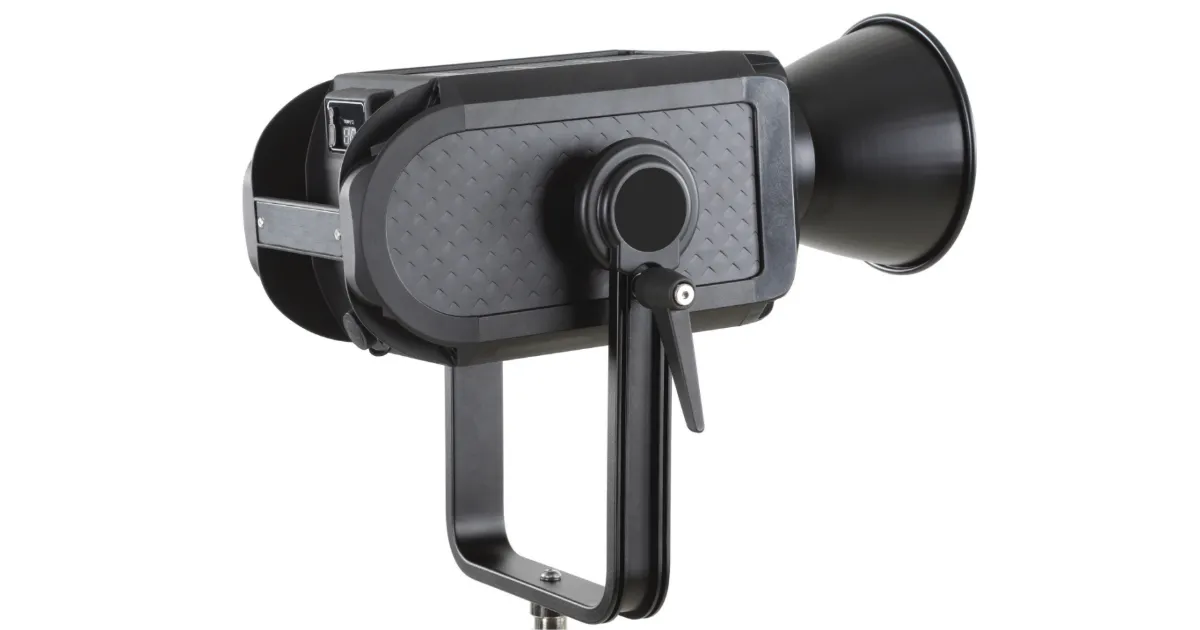
Le guide d'utilisation FOMEI LED DMX 600B - PhotoRobot vise à aider les clients PhotoRobot dans l'utilisation de leur lumière avec PhotoRobot. Ces informations comprennent des instructions pour l'utilisation de la lumière de studio FOMEI LED DMX 600B, et les étapes pour la configuration initiale de leur appareil.
Note : Ce manuel d'utilisation est une reproduction de la documentation officielle du fabricant pour le FOMEI LED DMX 600B. Reportez-vous au site web du fabricant fomei.com pour la documentation officielle de votre produit spécifique. De plus, assurez-vous de lire toute documentation fournie spécifiquement avec votre appareil avant sa première utilisation.
Important : Assurez-vous que le produit est intact et qu'il ne manque aucune pièce avant utilisation. N'ouvrez pas et ne réparez pas l'appareil vous-même. En cas de défaut, veuillez contacter FOMEI directement. Pour les informations de garantie et de maintenance des produits FOMEI, reportez-vous à la documentation fournie spécifiquement pour votre appareil.
Avertissements avant utilisation
Notez les avertissements suivants avant utilisation :
- Assurez-vous que le produit est intact et qu'il ne manque aucune pièce.
- En CASE de dommage, contactez un représentant de service professionnel de FOMEI.
- Lors de l'utilisation du produit, assurez-vous que l'environnement est sec et ventilé.
- Pour des performances optimales, nettoyez régulièrement le produit à l'aide d'un chiffon propre.
- Ne pas rayer ou appliquer de pression sur le produit.
Avertissements de sécurité
Assurez-vous de suivre les avertissements de sécurité :
- N'utilisez pas votre unité LED dans un environnement où l'humidité est susceptible d'entrer en contact avec l'unité.
- Ne démontez pas le produit. En cas de dommage, contactez un représentant du service FOMEI, ou le service contractuel de professionnels qualifiés.
- Si le produit est démonté, il ne sera pas couvert par la garantie.
- Ne pas utiliser le produit à des températures extrêmes (+50° C)
- Le produit ne convient pas aux enfants.
- Ne branchez / débranchez pas l'appareil lorsque l'alimentation est toujours connectée.
- Ne surchargez pas la lumière plus que nécessaire.
- Ne pas obstruer les bouches d'aération pendant l'utilisation.
- Notez qu'un risque d'incendie existe si des matériaux inflammables sont placés à proximité lorsque l'unité est utilisée.
- Évitez de placer les câbles là où ils peuvent être dangereux.
- Tenir hors de portée des enfants.
Étiquettes de recyclage et d'information
Ce produit contient des pièces électroniques. Ne jetez pas le produit avec les déchets ménagers, mais apportez-le à une installation de recyclage électronique. S'il vous plaît, protégez notre planète.
L'étiquette d'information avec la poubelle barrée signifie que, au sein de l'Union européenne, le produit :
- Doit être collecté séparément conformément aux réglementations applicables en matière de déchets électroniques en fin de vie.
- Ceci s'applique à l'appareil et à tous les accessoires marqués de ce symbole.
- Ne jetez pas ces produits avec les déchets municipaux non triés.

PhotoRobot - Guide de l'utilisateur FOMEI LED DMX 600B
Le contenu de ce guide d'utilisation du FOMEI LED DMX 600B se compose des sections suivantes, dans l'ordre.
- À propos de : FOMEI LED DMX 600B
- Commandes
- Contrôle de la lumière
- Informations techniques
1. À propos : Lumière de studio FOMEI LED DMX 600B
Le FOMEI LED DMX 600B est une lumière de studio professionnelle avec une puissance maximale de 600W / 5600K, adaptée à une utilisation professionnelle en studio pour la vidéo et la photographie. L'alimentation de l'appareil provient directement du réseau, et il y a une entrée et une sortie pour le protocole DMX filaire et sans fil. Cela permet à la lumière d'être adaptée même aux grandes productions. La lumière dispose de commandes soit via l'écran intégré avec molette de défilement intuitive, soit via l'application mobile.
Le paquet du LED DMX 600B contient les principaux composants suivants.
- Lumière
- Unité de contrôle
- Réflecteur
- Cordon d'alimentation
- Caisse de transport
2. Commandes
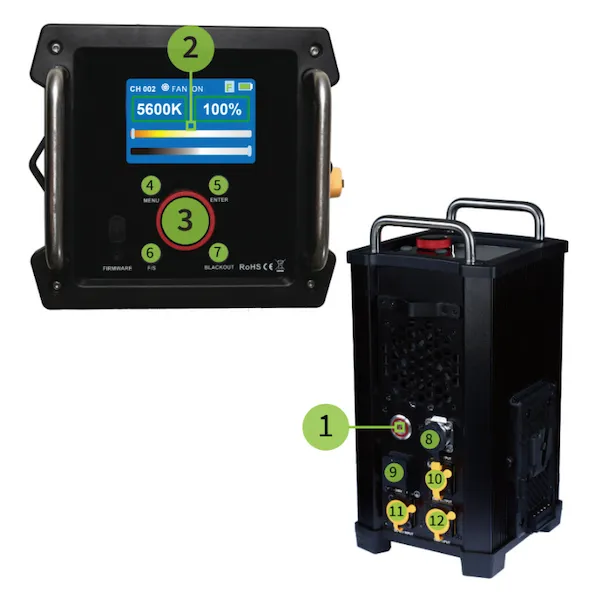
- Bouton MARCHE / ARRÊT
- Montrer
- Rouleau de contrôle
- Bouton MENU
- Bouton ENTRÉE
- Vitesse de défilement
- Bouton BLACKOUT
- Sortie CC
- Entrée CA
- Sortie DMX
- Entrée CC
- Entrée DMX
3. Contrôle de la lumière
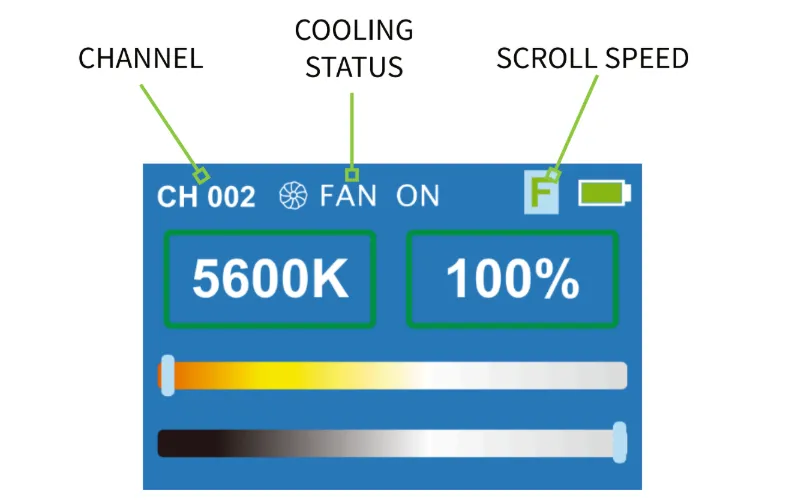
Le FOMEI LED DMX 600B permet de contrôler la lumière via l'écran. Après avoir allumé la lumière, le premier menu apparaît. En même temps, la barre supérieure de l'écran affichera le canal actuel (gauche), l'état de refroidissement (milieu) et la vitesse de contrôle (droite).
Menu principal
Lorsque la lumière est allumée, le menu principal permet le réglage de l'intensité lumineuse. Utilisez la molette de défilement pour régler l'intensité lumineuse de 0 à 100 %. Pour un contrôle plus rapide ou plus précis, utilisez le bouton Vitesse de défilement pour régler la vitesse de défilement. La vitesse de défilement de la molette est indiquée dans la barre supérieure de l'écran (F : par 10 points, S : par 1 point).
Effets d'éclairage
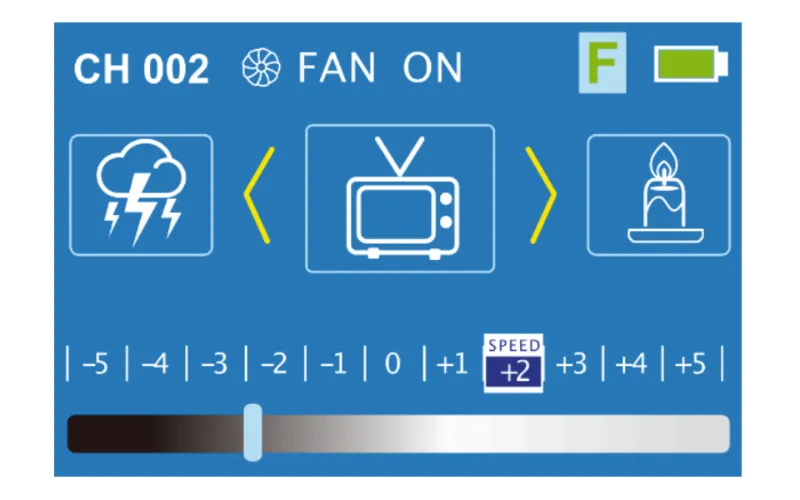
Depuis le menu principal, appuyez sur le bouton MENU pour passer au menu des effets d'éclairage. Pour régler les effets d'éclairage, tournez le bouton pour sélectionner un effet d'éclairage spécifique, et utilisez le bouton ENTER pour sélectionner l'effet et modifier sa vitesse. Appuyez à nouveau sur ENTER pour régler l'intensité de l'effet désiré.
Réinitialisation de la connexion BT
Accédez aux paramètres Bluetooth en appuyant sur le bouton MENU pour passer au menu avec « Bluetooth ID » en haut. Ensuite, appuyez sur ENTER sur le point d'interrogation (« ? »), et tournez le bouton pour sélectionner « YES ». Ensuite, le champ d'affichage passe à « Start? » pour signaler que la connexion Bluetooth a été réinitialisée.
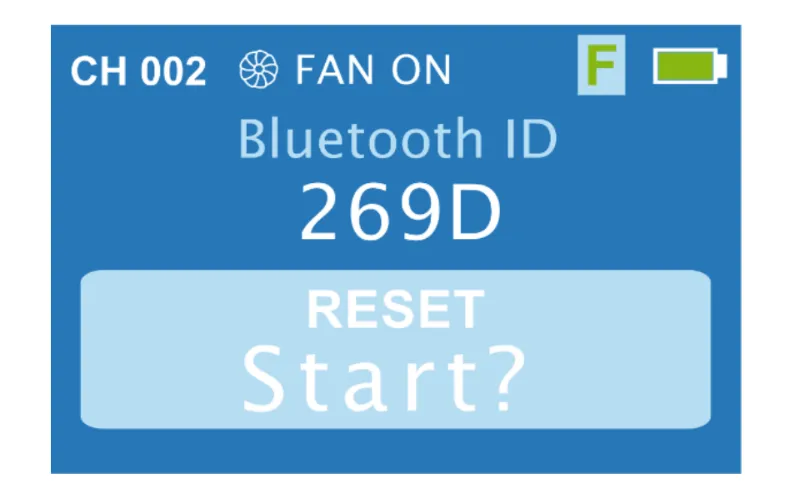
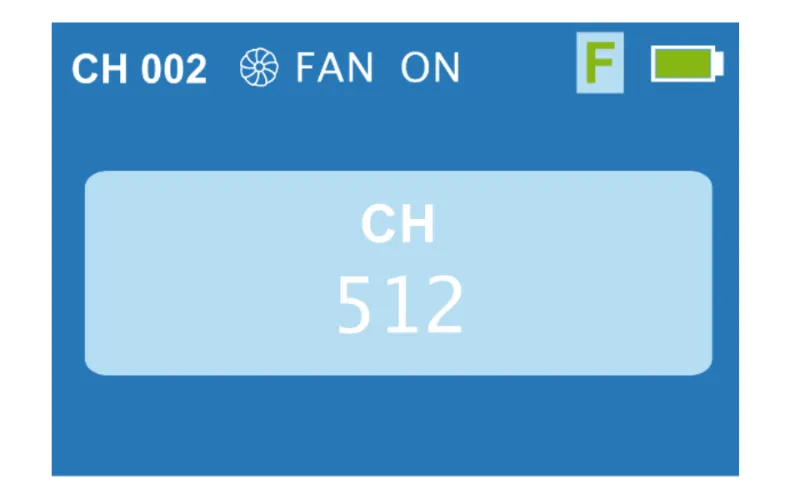
Menu de la chaîne
Utilisez le bouton MENU pour accéder au menu et changer le canal DMX, et faites pivoter le rouleau de commande pour changer le canal DMX de 1 à 512.
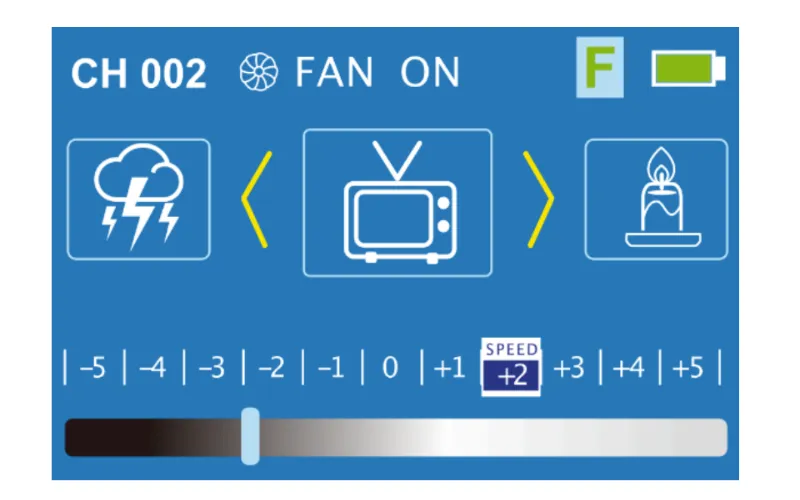
Menu de refroidissement
Le menu de refroidissement permet de contrôler le refroidissement de la lumière en tournant le rouleau de commande sur ON ou OFF. Remarque : Après avoir désactivé le refroidissement actif, il est recommandé de vérifier la température de la lumière. Pour vérifier la température de la lumière, inspectez l'affichage situé sur le corps de la lumière elle-même.
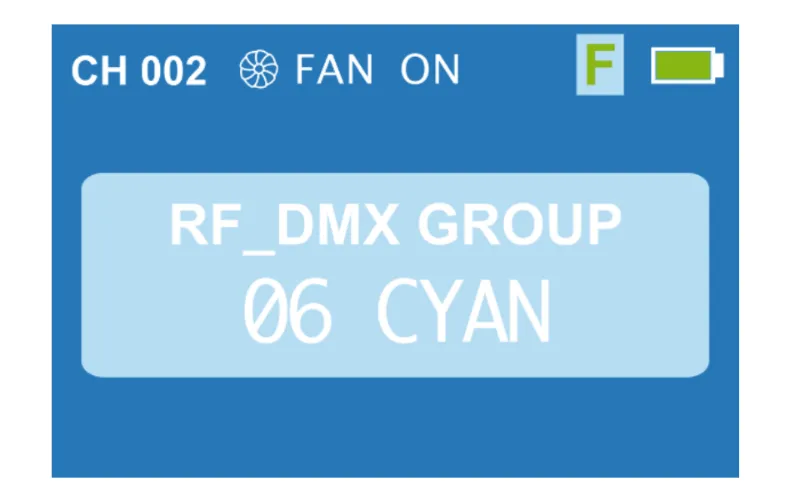
Menu DMX sans fil
Le menu du mode DMX sans fil contient 7 groupes (Rouge, Vert, Jaune, Bleu, Violet, Cyan, Blanc). Chaque groupe contient ensuite 512 canaux. Réglez l'émetteur DMX sur les mêmes paramètres que la lumière. Ensuite, après environ 2 minutes, la connexion sera établie.
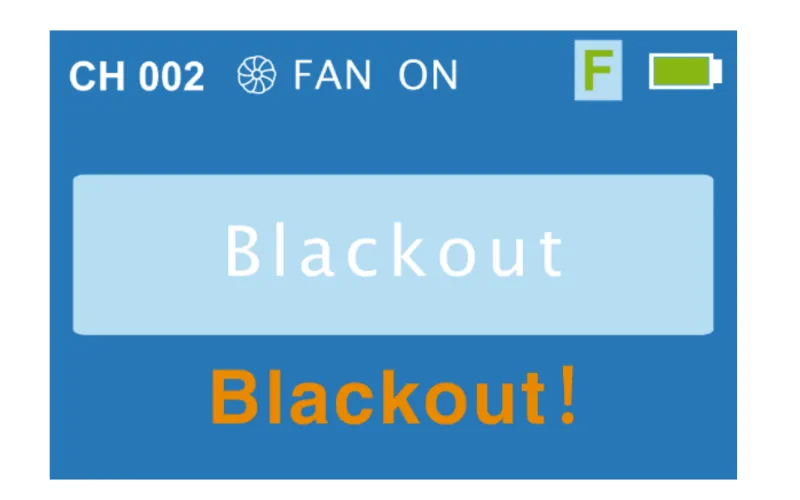
Fonction BLACKOUT
Utilisez le bouton BLACKOUT pour désactiver toutes les fonctions d'éclairage actives. Appuyez à nouveau sur BLACKOUT pour restaurer les fonctions.
Contrôle via l'application
Après avoir réinitialisé le signal Bluetooth sur le FOMEI LED DMX 600B, connectez-vous à l'appareil mobile via Bluetooth en utilisant l'application Desal Lite+ téléchargée sur votre téléphone. Dans l'application, appuyez sur le symbole plus («+») dans le coin supérieur droit, puis appuyez sur «Ajouter un appareil» pour rechercher des lumières. Lorsqu'une est trouvée, appuyez à nouveau sur le symbole plus pour ajouter la lumière. Il est maintenant possible d'utiliser l'application pour contrôler l'intensité de la lumière, la scène lumineuse et pour synchroniser la lumière avec la musique.
Téléchargement de l'application Desal Lite+
L'application Desal Lite+ pour le contrôle du FOMEI LED DMX 600B est disponible en téléchargement sur iOS et Android. Trouvez le téléchargement de l'APK pour Android sur fomei.com ou utilisez le code QR ci-dessous pour un téléchargement rapide sur Android ou iOS.

4. Informations techniques
Les spécifications techniques de la lumière de studio FOMEI LED DMX 600B sont présentées dans le tableau d'informations techniques et le graphique DMX suivants.
Informations et contact de la société FOMEI
La société FOMEI s.r.o. est enregistrée à l'adresse : Machkova 587, Hradec Kralove 500 11, République tchèque.
E-mail à sls@fomei.com pour les demandes générales, ou à servis@fomei.com pour les demandes de service.
Téléphone : +420 495 056 505
Notes finales
Ceci est une reproduction du manuel d'utilisation officiel du FOMEI LED DMX 600B, qui est également disponible en version PDF téléchargeable sur fomei.com. Pour toute information de service, veuillez vous référer à la documentation fournie spécifiquement avec votre appareil, ou contacter le service après-vente FOMEI pour un support immédiat.


Série EOS Rebel


Série EOS DSLR


Série EOS M sans miroir


Série PowerShot


Gros plan / À main levée

La série Canon EOS Rebel propose des appareils photo reflex numériques adaptés aux débutants avec une qualité d’image solide, des commandes intuitives et des fonctionnalités polyvalentes. Idéal pour les amateurs de photographie, ces appareils photo offrent une mise au point automatique fiable, des écrans tactiles orientables et un enregistrement vidéo Full HD ou 4K.
Connexion
Résolution (MP)
Résolution
La série Canon EOS DSLR offre des images de haute qualité, une mise au point automatique rapide et une polyvalence, ce qui la rend idéale pour la photographie et la production vidéo.
Connexion
Résolution (MP)
Résolution
La série Canon EOS M Mirrorless combine un design compact avec des performances similaires à celles d’un reflex numérique. Dotés d’objectifs interchangeables, d’un autofocus rapide et de capteurs d’image de haute qualité, ces appareils photo sont parfaits pour les voyageurs et les créateurs de contenu à la recherche de portabilité sans sacrifier la qualité d’image.
Connexion
Résolution (MP)
Résolution
La série Canon PowerShot propose des appareils photo compacts et conviviaux pour les photographes occasionnels et les passionnés. Avec des modèles allant du simple appareil photo compact aux appareils photo zoom avancés, ils offrent commodité, une qualité d’image solide et des fonctionnalités telles que la stabilisation d’image et la vidéo 4K.
Connexion
Résolution (MP)
Résolution
Les appareils photo rapprochés et portables de Canon sont conçus pour la photographie et la vidéo détaillées et rapprochées. Compacts et faciles à utiliser, ils offrent une mise au point précise, une imagerie haute résolution et des capacités macro polyvalentes, parfaites pour le vlogging, la photographie de produits et les gros plans créatifs.


